Klick hier für Seite auf Deutsch
Introduction | Why | Missions | Tutorial | FIP | Once | Memory | More
|
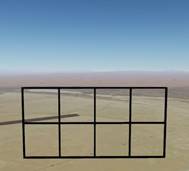
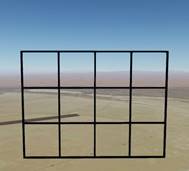
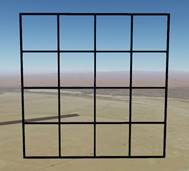
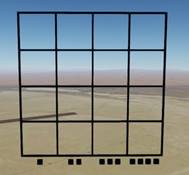
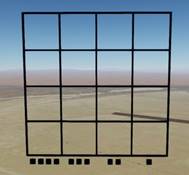
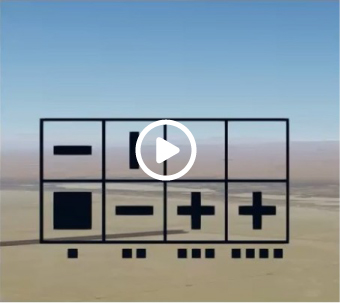
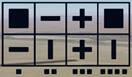
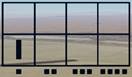
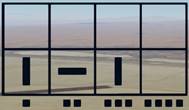
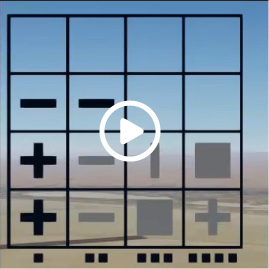
Diary Memory Flight Creation: Ever since TicTacToeFlug, I had been thinking about creating another game. For a long time, I didn't know what kind of game to make, because chess, checkers, or similar games are impossible, and a sliding puzzle is also much too complicated. Recently, I came up with the game Memory, which is probably very complex, but feasible. I quickly found a solution for the playing field and game pieces, but I just couldn't figure out everything else in my head; it was too complex. Note: Some of the images shown below can be viewed in a larger size by clicking on them. So let's get started: What should the playing field look like? A grid frame measuring 2x4 | 3x4 | 4x4.
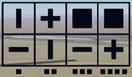
When approaching the playing field from the other side, all symbols are reversed.
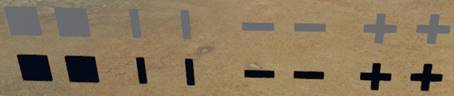
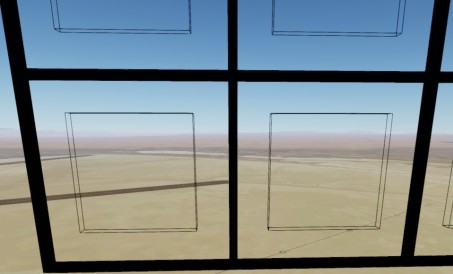
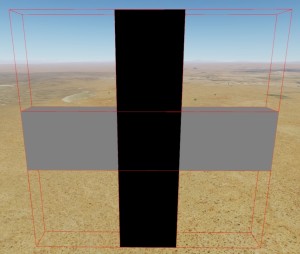
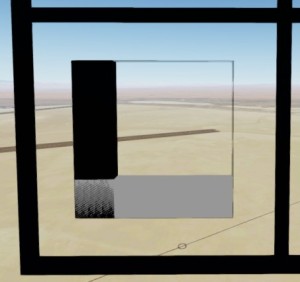
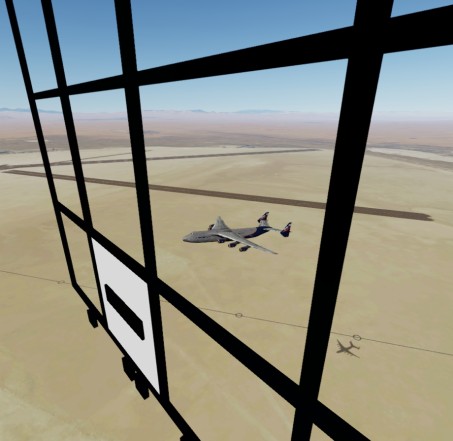
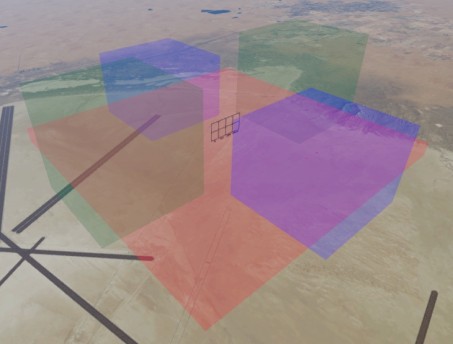
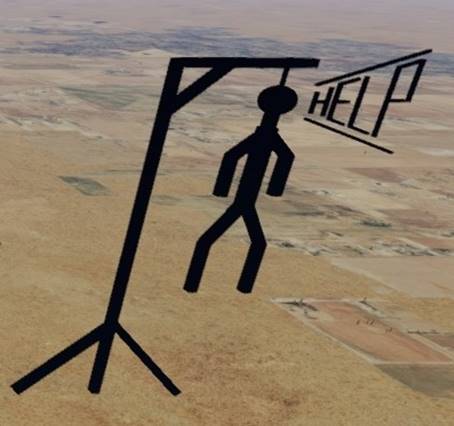
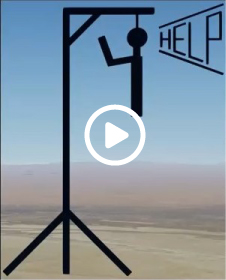
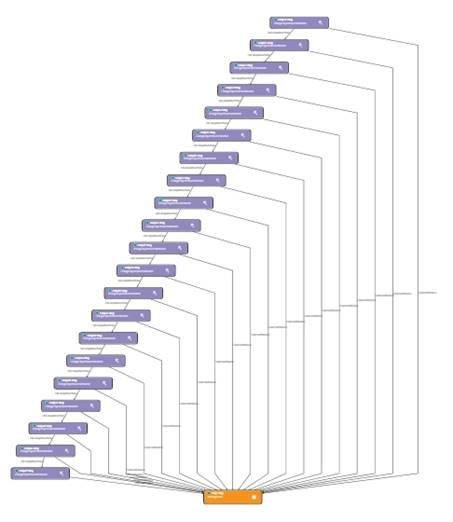
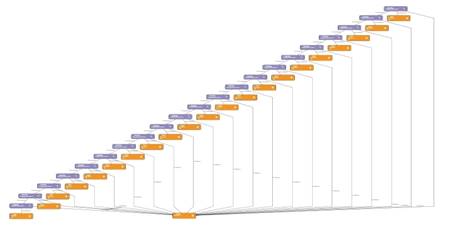
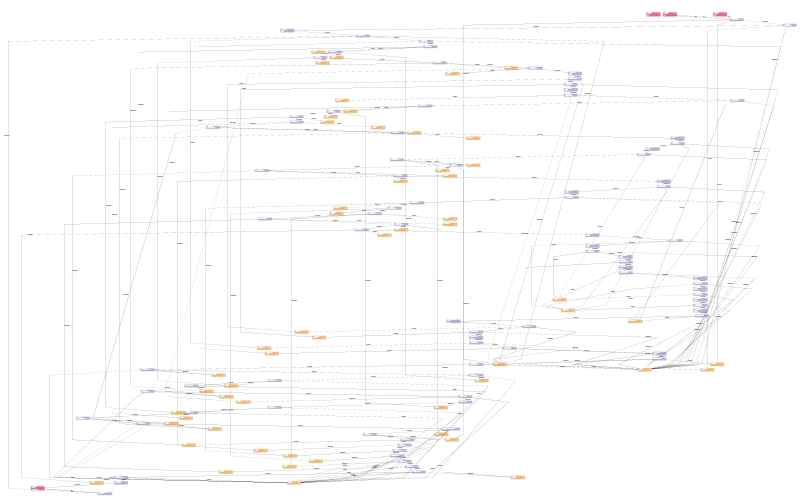
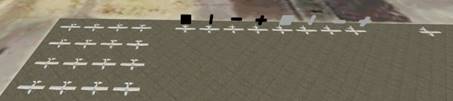
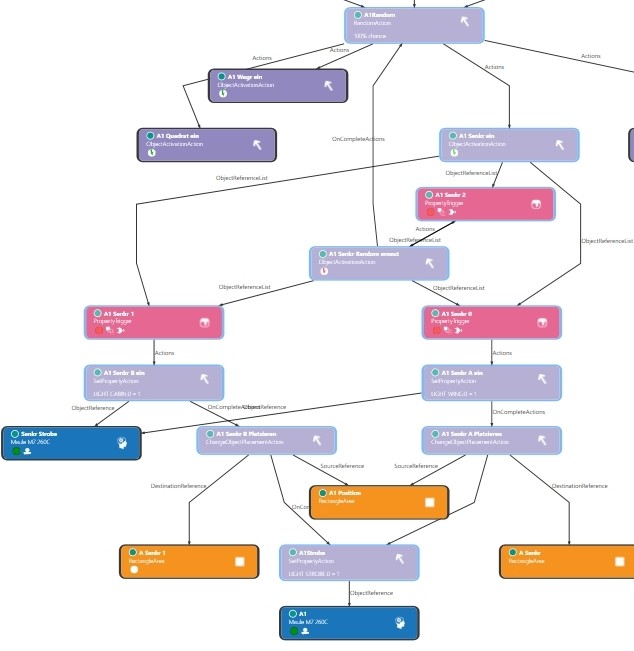
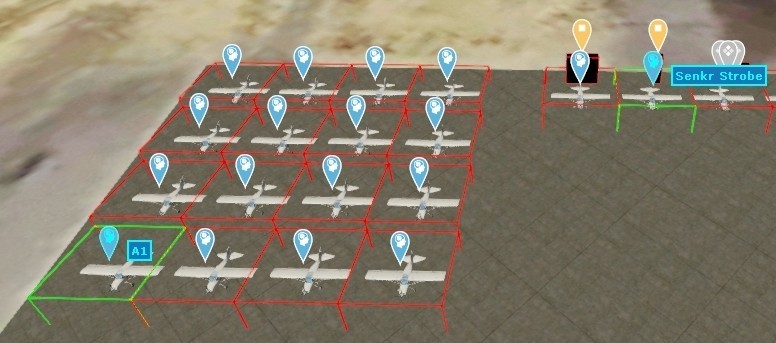
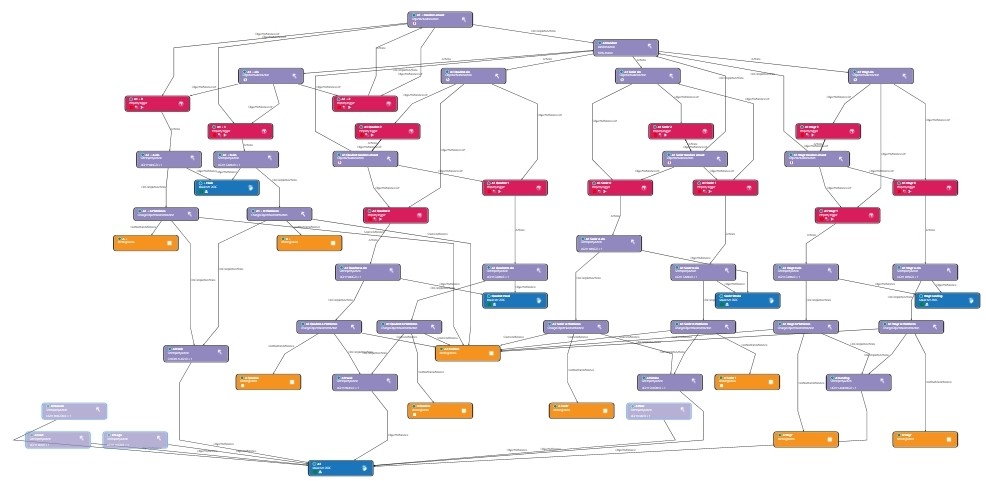
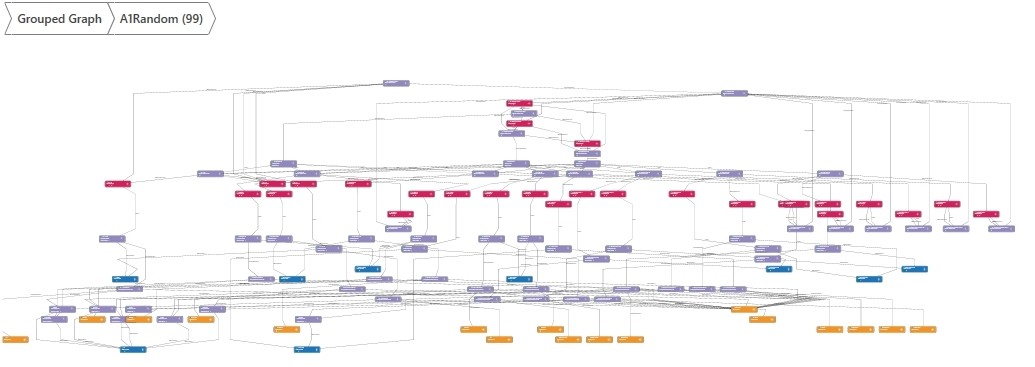
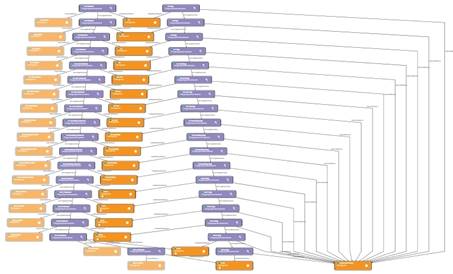
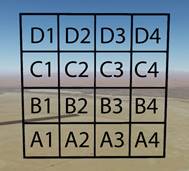
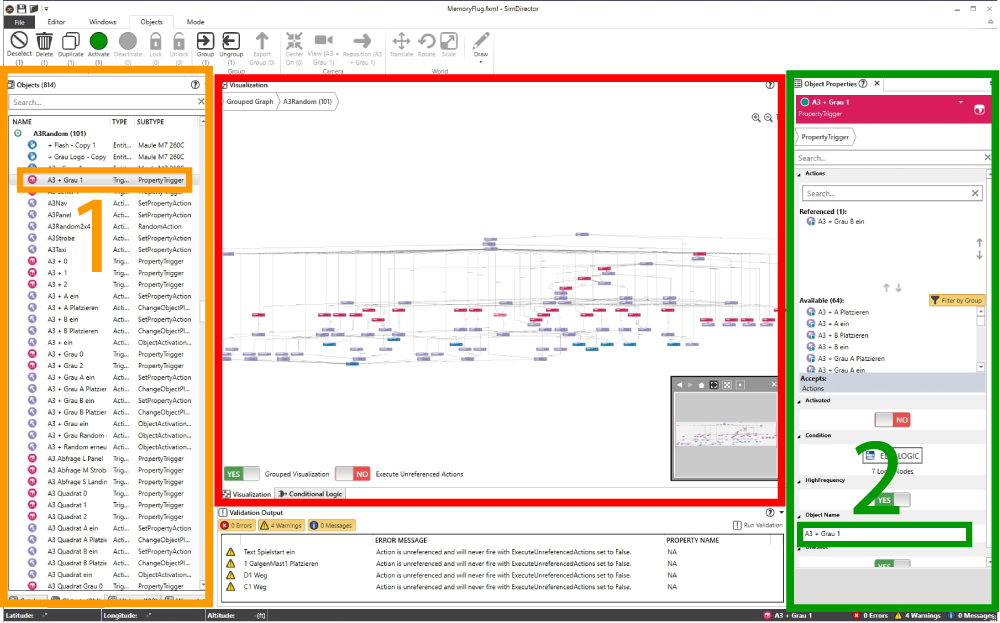
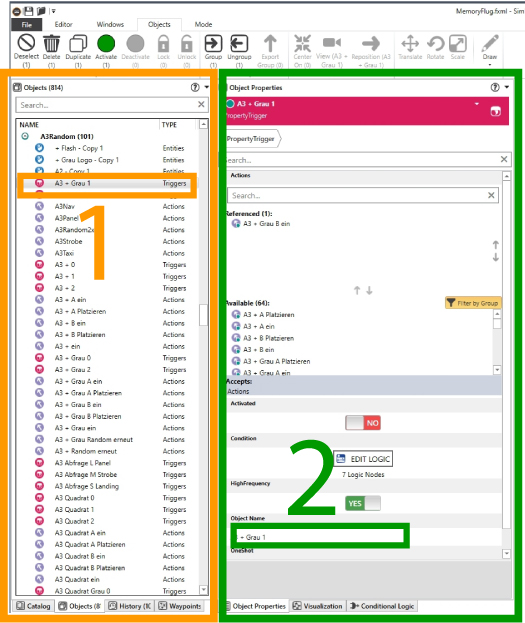
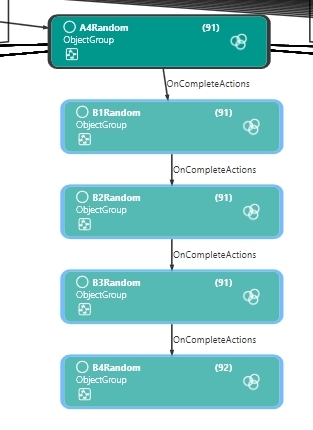
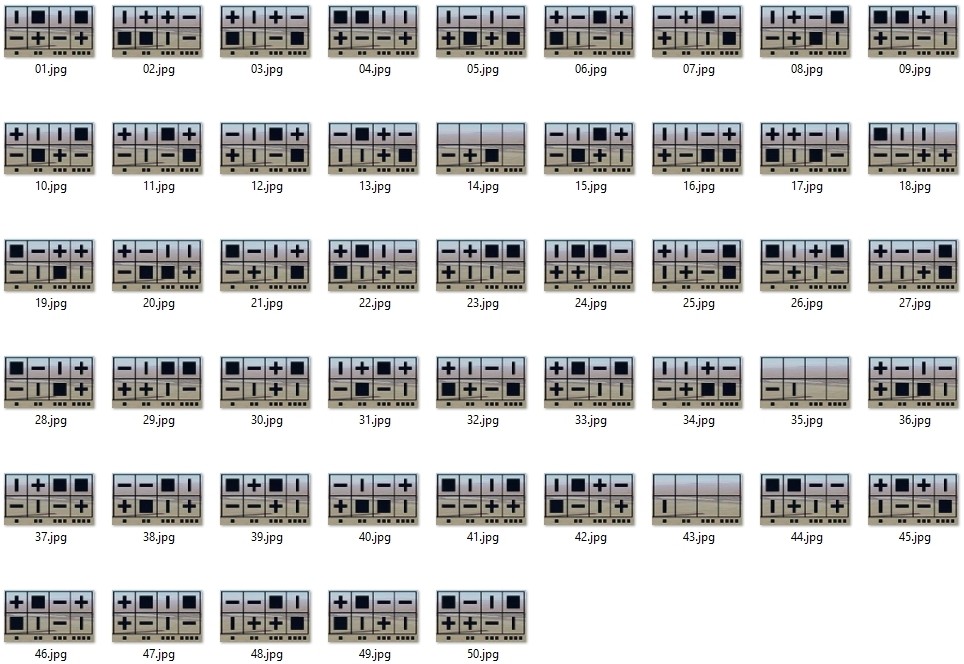
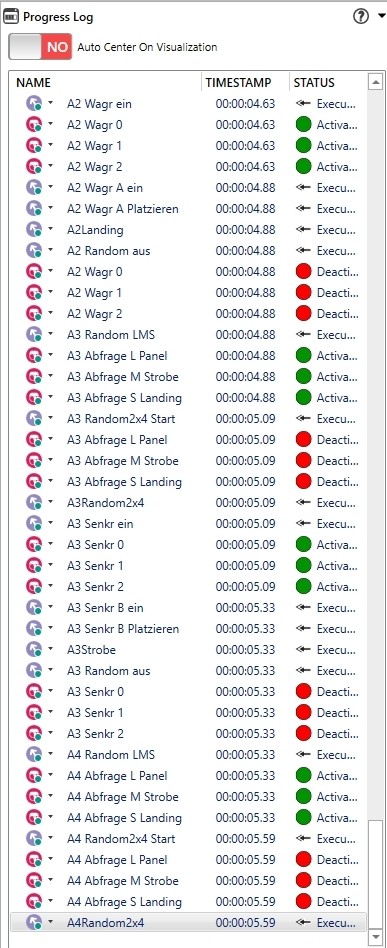
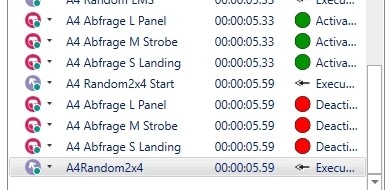
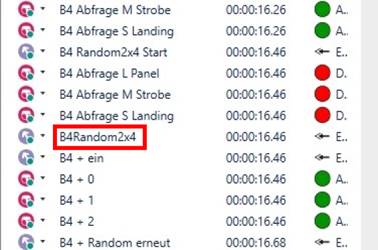
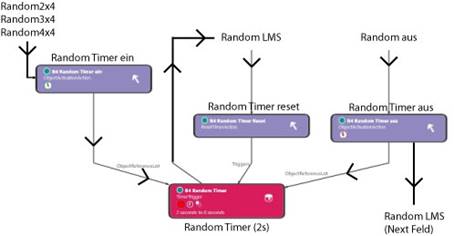
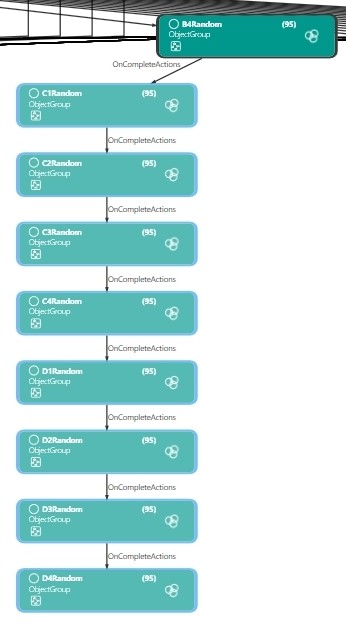
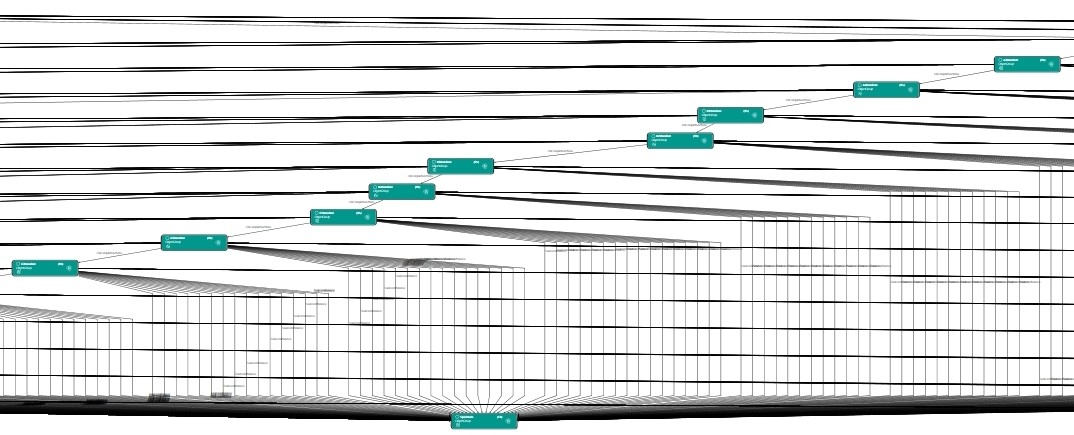
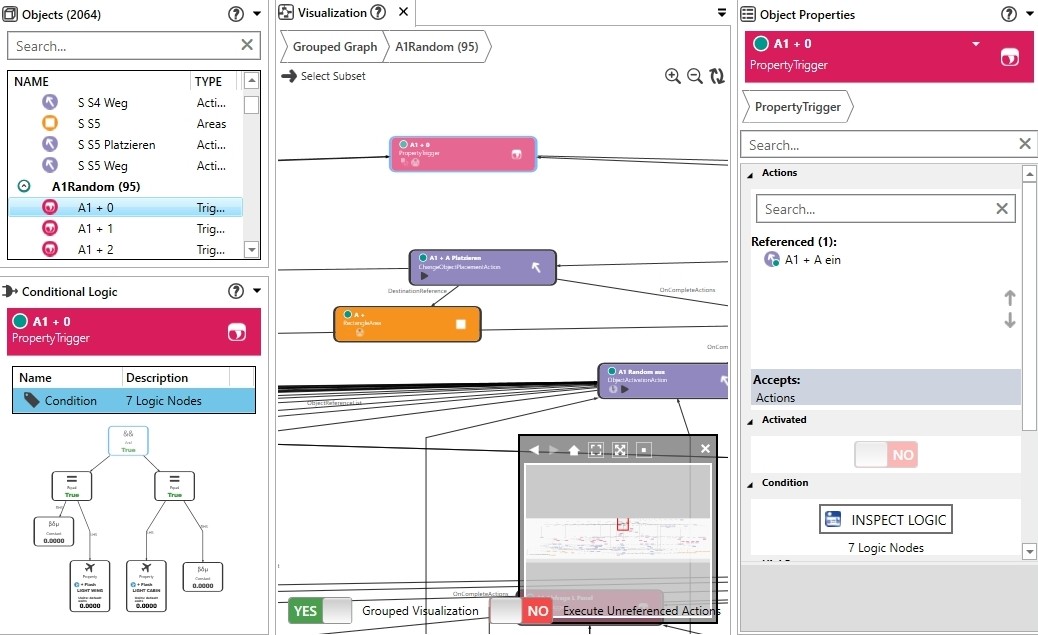
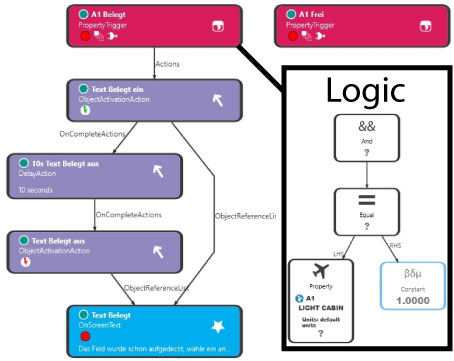
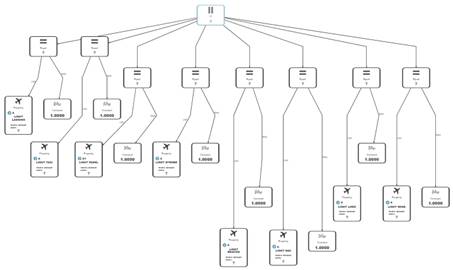
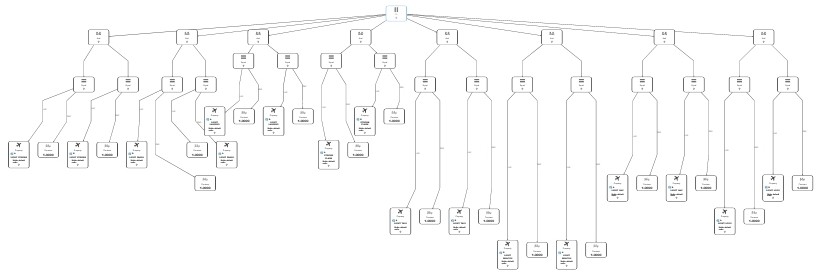
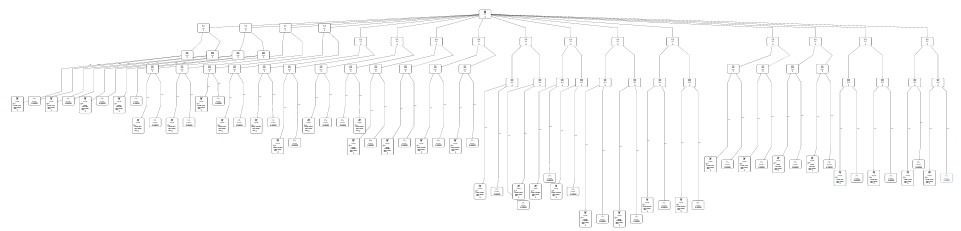
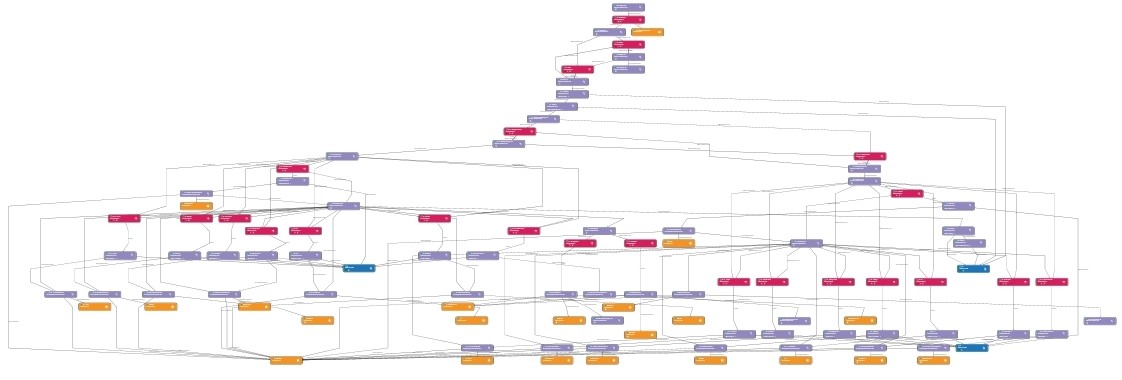
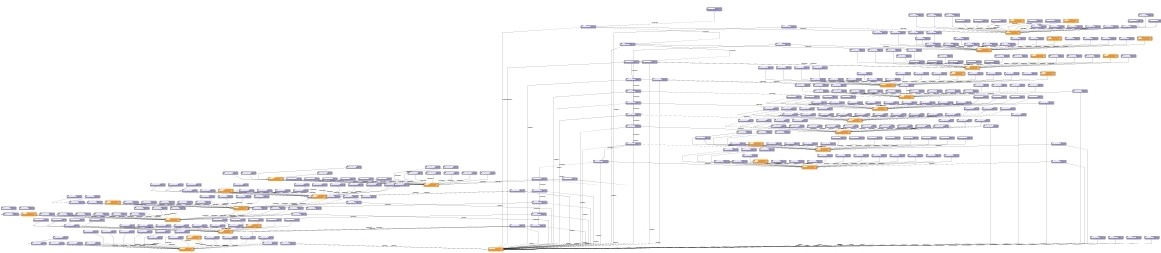
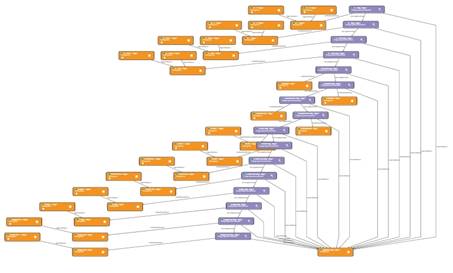
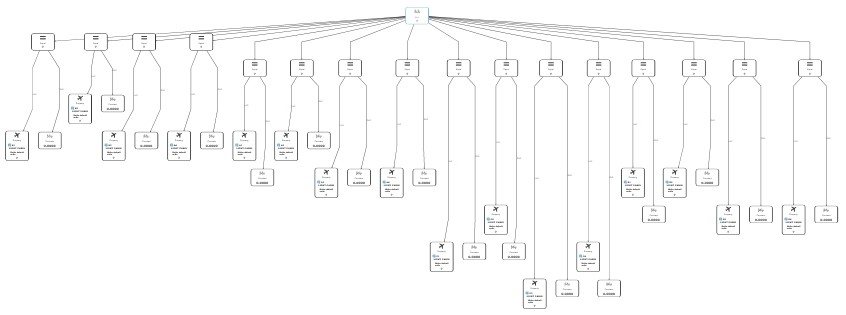
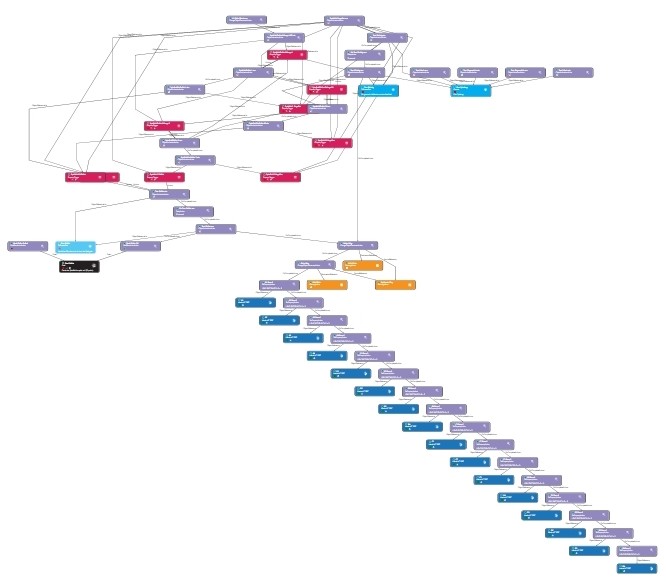
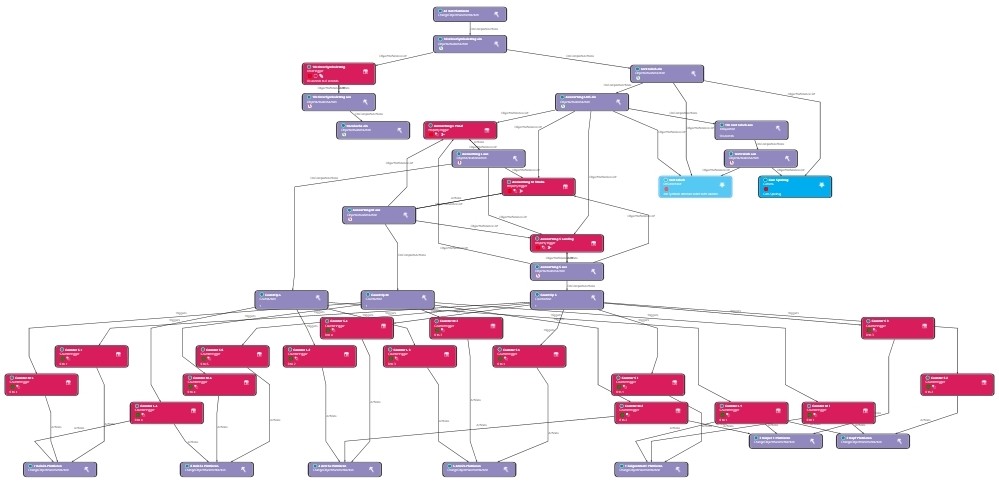
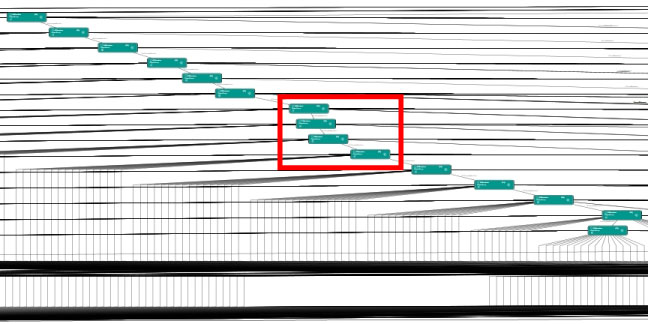
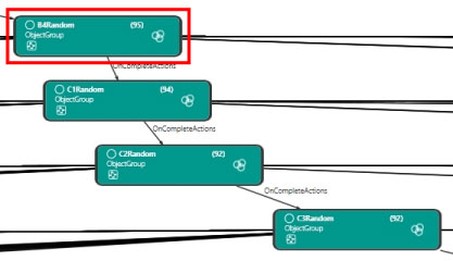
Which symbols do I need? - White area (which marks the field that has just been activated and for which the duplicate is now to be found). - A hangman, which is displayed/hanged step by step with each mistake. I lined up all these symbols next to the playing field so that I could keep an eye on them while creating them and see what happens when I move them. Incidentally, the playing field, symbols, colored areas, and hangman consist simply of RectangleAreas. Unfortunately, I have to move the symbols; I cannot simply switch from visible (color “black”) to invisible (color “transparent”). Transparent means invisible (and is indeed invisible in P3dv4), but from P3dV5 and in P3dV6, a very thin line is always visible in invisible areas. So I have to move the icons, which involves more effort and causes problems. All symbols should be placed in the center of the correct area of the playing field, so I have marked the target positions with invisible square areas on the playing field. Placing a square is easy because it is the same size as the target position. A vertical line is narrower and a horizontal line is less tall than the target position. So the symbols would be aligned bottom-left and left-aligned with the target position. When I move the two areas for a plus sign, they are positioned as follows: Whenever a plus sign needs to be displayed, I have to move two areas, which would require two ChangeObjectPlacementActions. That's why I placed an invisible area (shown here with a red frame) around the plus sign and connected the two lines (shown here in gray and black) to this red frame. Now I only have to move the red frame to the target location and both lines follow the red frame. Each object can either have a fixed position in the world (AttachedWorldPosition) or be attached to another object (AttachedWorldObject). When an object is attached to another object, the former follows all movements of the latter. This way, I only need one ChangeObjectPlacementActions per symbol, and the symbols are always perfectly centered. Once the playing field and symbols were ready, I moved on to the next “simple” task, as I'm sure I'll be able to solve the big problems later. Psychologists probably call this problem avoidance. Just like TicTacToeFlug, MemoryFlug should be playable with any aircraft. The playing field is large enough that even the AN225 can easily fly through the individual fields. Gliders should also be able to be used, so I imported the corresponding group from TicTacToeFlug and adapted it. After the playing field size has been selected, the player is prompted to choose any aircraft. A 10-second timer is displayed, and another aircraft must be selected within this time. There is plenty of time, because as soon as you switch to the aircraft selection, the flight and timer stop. A trigger then asks how many engines the aircraft has. If there are zero engines, it is a glider and a text appears telling you how to call a tow plane (Ctrl+Shift+Y). At the same time, thermals around the playing field are activated and a few birds appear in the corresponding areas as a visual aid. To ensure that you never lack lift, there is a weak basic thermal (red) in the area below the playing field, which allows the glider to climb at about 500 ft/min. The thermals in front of and behind the playing field (marked blue here) are medium-strength thermals that allow the glider to climb at about 1000 ft/min. To the left and right of the playing field are strong thermals (green) that allow a climb rate of about 1500 ft/min. Then I made a hangman game, and I had the crazy idea of animating the hangman so that it could call for help. I spontaneously realized this sub-project. This means that the hangman is built up further with every mistake: As soon as the left arm appears, the hangman calls for help every 20 seconds. Displaying the individual elements was already a complex task, but the arm movement and the lettering “HELP” surpassed everything. Here, still without links to the individual font elements. When linked, it looks like this (43 objects are now linked together): In total, the fade-in of the left arm, including animation and the word “HELP,” required 144 objects. Now it gets tricky, because how do I fill the playing field with randomly placed symbols, or how do I save which symbol is in which position? Without scripting, I have to find a way to save something. So I placed a whole fleet of airplanes at the nearby airport, each of which saves different things. How does an aircraft store this information? It's simple: For the playing field position: - I could query the game field planes to find out whether and how often a symbol is already present on the game field, but that would be a huge query (16x8 symbols, i.e., 128 queries). That's why I separated it and moved it to the 8 planes (with symbols above them). But now to filling the playing field randomly using Random Action: At first, I wanted to randomly select one of the 16 playing fields and fill it in sequence with the symbols “square,” “vertical line,” etc. If a field is already occupied, the random selection would have to be restarted. In the end, it would take an incredibly long time if 15 fields were occupied until the last free field was finally selected at random. The principle: One of the four symbols is selected at random, in this case the vertical line, which is queried with the three property triggers (red) to see whether there is already a 0 (none), 1, or 2 vertical line anywhere on the playing field. The property triggers query the corresponding aircraft with the matching symbol to determine whether “Light Wing” and/or “Light Cabin” is active. - If the result is 2, the random is executed again because a different symbol must be placed. Aircraft A1 (bottom left) is assigned the vertical line symbol, and the marked aircraft on the right stores how often the vertical line has already been used. This is what the group of elements looks like that is needed just to fill field A1. The problem is that the 3x4 field would require another 12 such groups, which would consist of 69 elements each rather than 46, and the 4x4 field would require another 16 groups with 92 elements each. So I had to rethink my approach... With the additional queries, I am now at 99 elements, so probably a total of 1584 for the finished field allocation. Duplicating 99 elements and renaming each one (removing the suffix “- Copy 1” and changing “A1” to A2) is pure drudgery. So for now, I've only duplicated and renamed the whole thing once to test whether it will actually work in the mission later on. ---Thoughts--- - With the 16 aircraft available on the playing field: - With 1 additional aircraft: How do I recognize during the 2nd pass that both symbols are correct/incorrect? - Query all 16 aircraft to see which lights are on... Because some were already switched on before, this is not possible, unless... When the field is flown through, a 9th light is switched on for the corresponding aircraft, which indicates that this aircraft is “meant.” Now simply create 16 queries (1 per aircraft) that have switched on the 9th light; the query can be used again and again. I don't think that works. - Create 2 additional aircraft that only remember the symbol. First fly-through square = taxi, 2nd fly-through = beacon, doesn't fit, display red symbols, reset aircraft, extend hangman, etc. Probably doesn't work either, because it's not reusable... Since I am currently unable to make any progress with the above issues, I am focusing on other matters. It occurred to me that I need to show and hide the playing field depending on its size. Unfortunately, the playing field is not a single object, such as a house, airplane, or similar, but consists of many individual parts. Unfortunately, the “ChangeObjectPlacementAction” cannot be used to move all 18 objects to the desired location at the same time; the action can only move a single object. So the first move action must move Object1 and “OnComplete” must trigger the next move action for Object2, and so on. This means that the original 18 objects suddenly become 54 objects, which looks like this when linked: Once the game is over, you should of course be able to start a new game, so all objects must be moved back to their original positions, which in this case (for the playing field) requires 18 actions. It would be easier if the user restarted the flight, but that's not convenient... Displaying the playing field size as needed works, so now it's time for the hard work. By the way, the fields are numbered as follows: To optimize the whole process, I redesigned the SimDirector view so that the paths with the mouse are not so long. To make sure I don't overlook any objects, I now select the objects one by one in the object area (orange) and then rename them in the green area. As you can see, the distance between 1 and 2 is extremely long when using the mouse. So I redesigned the view, hiding the visualization area and moving the object properties area right next to the object area. After renaming, the individual objects must of course also be assigned to other areas and aircraft. I usually make these reassignments in the normal view, with the visualization area in the middle of the screen. SimDirector always displays the newly linked object in the visualization window and also changes the group. For small missions with up to 500 objects, this works quite well and quickly. Currently, this mission already has over 800 objects, which means that each link takes 1-2 seconds until SimDirector has updated the visualization and the next link can be made. With 2000 objects, it even takes 4-5 seconds. It feels like an eternity when you could double-click 25 triggers in quick succession in a single ObjectActivationAction without moving the mouse, but always have to wait 5 seconds in between for the visualization to update. I am already familiar with this problem, so I simply deactivate the visualization and have all 25 objects linked in a few seconds. I now have a safe and quick solution for this: before reactivating the visualization, I simply save the mission and then reload it. This updates the project, which only takes a few seconds, and when I activate the visualization, there are no problems. After a successful test with fields A1-A4, further duplication should be faster. By optimizing the code, I was able to reduce the number of objects from 99 to 91 per field. That may not sound like much, but with 16 fields, that's a total of 128 elements saved. This time, I didn't duplicate a single group (A1), but an entire row (A1, A2, A3, A4). That's 364 objects, which fortunately retain their connection to other groups. This increased the number of objects from 899 to 1263. Here are the four new groups. The overview currently looks like this. Today I was busy and renamed all 365 objects: The 224 objects were more time-consuming, because each one had to be individually assigned to the correct object. Because these objects are not located in the same directory, you have to search for them across groups (among the current 1263) of existing objects. I have developed a fairly simple search method for this; sometimes the search term “A” or “wa” (for wagr) is sufficient, but linking is still time-consuming and exhausting. It is also prone to errors: If “square” and “square gray” or “A place” are confused with “B place,” unexpected errors occur: An object suddenly disappears during the construction of the playing field, or the construction of the playing field stops unexpectedly. Of course, linking has an impact on visualization. The view shown above, which was still quite clear, turned into this: Somehow, this view scares me, because I haven't even reached half of it yet. Anyway, the 2x4 field is now ready, so I can test the random symbol assignment. The first test was successful and also pleasantly fast, taking about 6 seconds to set up the playing field. Of course, I did a second and third test to see if the symbols were really distributed randomly. Unfortunately, or should I say thankfully, the game board got stuck on the fourth field. Otherwise, I might never have discovered the error, or only at the very end. So I did 50 more tests and took a screenshot of each result, hoping that this would help me find the error. For example, if the setup always stops after the second horizontal line, there is a link error that tells the random generator that the game board setup is complete, or something similar. Here are the 50 attempts: In experiments 14, 35, and 43, the setup got stuck. Does anyone see a pattern? I certainly don't. However, I did notice something interesting. 1) In trial 35, the structure stopped at the second symbol, while in trials 11, 19, 28, 30, and 37, the structure ran through even though the first two symbols are identical. It can't be due to a specific symbol. 28 30 37 2) It can't be due to a specific playing field either, because the setup always stops at a different field. So the error can only be in the random action. A random action can be used in three ways: So I checked all random actions, and for all of them, the 4 possible objects are entered in “Actions” and “ProbabilityPercent” is set to 100% everywhere. ---By the way--- Quote from the Tic Tac Toe flight explanation: At the time, I used a complex method to catch the error, which had the side effect of delaying the AI's next move by at least 0.5 seconds (up to 5 seconds in extreme cases). It also required around 90 additional elements. MemoryFlug is structured slightly differently and is larger, so the above solution would require around 450 additional elements and the game board setup for the 2x4 field would take up to 40 seconds instead of 6. For the 4x4 field, this would be 120 seconds, or 2 minutes, which is unacceptable. In any case, I ran a few more tests on the game field setup to confirm my suspicion. I activated the “ProgressLog” to see where the setup was getting stuck. The log looks like this: This is how it should look: My idea for solving this problem is to use a timer that restarts the random action when it expires. So I inserted a dummy action that is supposed to trigger the random action as soon as it is finished (OnCompleteAction). I found a solution that only requires 4 additional elements per playing field (i.e., a total of 64 elements). To integrate this, I have to create or adjust 8 links; with 16 playing fields, that's 128 links. After that, I'll see if it really works 100%. The solution looks good, so I added and linked the new objects. After lots of testing, I'm now sure that it works 100%, because the timer has started several times and triggered the randomizer again. Now it's time for some more hard work, because two more game board rows need to be added for the medium and hard modes. That's 8x95 objects, a total of 760 objects, which then have to be renamed and linked correctly. Newly duplicated groups Complete overview without new links: Overall view after aircraft, symbols, and areas have been linked: Now it's getting extremely confusing. Mind you, only the groups are displayed here, considering that many groups contain 95 or more objects. An initial test in SimDirector with the preview function was disappointing, as it took a long time (30-60 seconds) to load the playing field. So I tested it directly in P3d and, surprisingly, it only took about 10 seconds to load the playing field there. The SimDirector shows me the progress log in real time during the preview, which consumes a significant amount of performance. I deactivated the log, and SimDirector is now almost as fast as P3D again. Of course, it's still slower because SimDirector has to display not only the P3D display but also the 2064 objects, the object properties of the selected object, and the conditional logic (which displays the current value in real time). Since expanding from 2x4 to 4x4, I have had the problem that after setting up the 2x4 field, the random action continues endlessly and desperately tries to occupy the next field, which does not exist. So I have to find a suitable “exit point” that tells the random action that the game board setup is complete and the game can begin. The last action when the 2x4 field is finished is “B4 Random Timer off.” This then starts the next random “C1 Random LMS,” so I have to intervene there at the latest. LMS decides between easy, medium, and hard. With “L” (easy), there is no third row, so the random action stops right there. So I can remove a few elements because they are unnecessary. From the 4th row onwards, there is also no “M” (medium), so the LMS query could be omitted completely from there. That's the theory, but in practice, removing unnecessary objects is dangerous because you may not have thought through all the situations and a functioning system suddenly makes mistakes. Anyway, I removed what I could. The success of the deletion operation is modest; from 2064 objects, I was only able to reduce to 2036 objects, so only 28 fewer. ---By the way--- Now it gets tricky: how do I evaluate the fields? ---Thoughts--- 1a) Does aircraft A already have a light: If not, query which symbol (should work with 8 queries), depending on the light, temporarily display the corresponding symbol (e.g., panel = square) in the playing field and also the white area. Also display the text “Now select the matching counterpart.” Additionally, activate the light panel for “Aircraft A.” 1b) If aircraft A already has a light: If yes, query which symbol, depending on the light, temporarily activate the corresponding symbol (e.g., panel = square). For “Aircraft B,” activate the corresponding light. 1c) Now check whether aircraft A/B have activated the same lights (this should be possible with two checks, but the logic becomes quite complex). 2) Once it is clear that the symbols are a pair (or not), I have to remove the areas (white | green | red) and, if “incorrect,” also the corresponding symbol. It's like chess: I can plan 1-2 moves in advance, and once the game has progressed further, I can tackle the next move. The only thing that helps is trial and error. I realized that, in addition to the 8 lights for the corresponding game piece and the 9th light (for revealed), another status must be stored for the playing field aircraft (for temporarily revealed). My theory: I have also added two more aircraft (A + B) for comparing the pair. Whether this will actually work remains to be seen. 1) First, I created a query for field A1 “A1 Occupied,” in which I query whether the 9th light is active. This second element activates the query as to whether a light is already activated on aircraft A. 1a) Aircraft A is free, so the player reveals the first square. The symbol stored in the square that was flown over is then queried. There are 16 symbols, but only 8 different ones, because each one appears twice. Therefore, 8 PropertyTriggers are sufficient, each of which queries a light (panel, strobe, etc.). Only one of the 8 triggers will fire and activate a SetPropertyAction, which activates the corresponding light on aircraft A and then activates a ChangeObjectPlacementAction. The action moves the appropriate game piece to the field and then activates an ObjectActivationAction, which deactivates the 8 triggers and activates another ChangeObjectPlacementAction. This action in turn activates the white area and a text (Now select the corresponding counterpart.). 1b) Aircraft A is occupied, so the player reveals a second field. I have therefore copied the complete query for aircraft A and adjusted everything so that the corresponding light is set for aircraft B. 1c) At the end of the “1b) query,” a comparison is made to see if the two symbols match. This requires only two PropertyTriggers. I created steps 1a-c of my thoughts on a trial basis for one field (A1), and 73 objects are required for this. I have to duplicate the 73 objects for all other fields (A2-D4) and adjust all links (15x73=1095 additional objects). This image shows 103 objects, but there are actually only 73 objects in the group. The remaining visible objects (all orange, some purple, and 3 blue) are in other groups but are linked to this one. ---By the way--- This is what this group looked like before the external links were added. I digress, back to the topic. Before I copy 73 objects 15 times, rename them, create links, and adjust the references for triggers, I would like to know if I can also manage the evaluation somehow. In step “2)”, the current objects must be hidden accordingly, depending on whether they are “correct/incorrect,” and if they are incorrect, the hangman must also be gradually displayed. If the two revealed symbols match, the first step is to check whether the playing field is completely revealed. - If the playing field is unsolved, a text is activated (Well done. Select the next free field.), the white and green areas are removed, and the reco light is switched off for all aircraft. If the revealed game pieces do not match, things get more complicated: First, a text is displayed (Unfortunately, the symbols do not match.) and a part of the hangman is drawn. To do this, LMS queries the size of the playing field and activates certain counters depending on the size. The 4 counters for the 2x4 field have different start values (4,3,2,1) and count down to zero (0). A CountAction gives all 4 counters an impulse, whereupon they reduce their value by 1. The counter with the start value 1 will fire first and activate the drawing of the gallows pole; from then on, the counter is inactive. At the next pulse of the CountAction, the counter with the start value 2 will fire and continue drawing the gallows man, and so on. The next step is to remove the white and red areas and the incorrectly revealed symbols. To do this, all 16 aircraft on the playing field are checked to see if they have a Reco light switched on. If so, the Reco and Cabin lights on this aircraft are switched off and then the 8 lights representing the different symbols are checked. The PropertyTrigger with the corresponding light activates two ChangeObjectPlacementActions, which remove both game pieces (e.g., square A and square B). I remove both because I don't know whether symbol A or B was placed. For clarity, I have divided this query into 4 groups, each representing one row of the playing field, in this case the group for fields A1/A2/A3/A4, which contains 48 objects (the query requires a total of 192 objects). Subsequently, all PropertyTriggers that were activated during the above queries are deactivated. This is necessary to prevent activated triggers that have not yet been fired from suddenly firing later in the game when the next playing field is flown through. To do this, I started a timer at the beginning of the error evaluation, which deactivates all PropertyTriggers after one second. The entire error evaluation should actually only take about 0.2 seconds, but I will have to test this later. If necessary, I can set the timer to 2-3 seconds. The timer triggers an ObjectActivationsAction, which deactivates 145 objects. Finally, the corresponding lights on aircraft A and B must be deleted so that they are ready for the next field flight. A total of 298 objects are required for step 2. So that I can now test whether everything works, I have duplicated the query for field A1 (73 objects) and adjusted all links for A2. ---Cheat sheet--- After doing this, I ran a few tests and had to make various adjustments until it finally worked without any errors. I currently have 2493 objects and SimDirector is already unbearably slow. I just hope that SimDirector can handle it, because crashes are becoming more frequent. Even with simple actions such as “clicking on the Save button,” SimDirector can crash (fortunately only after saving the changes). When I consider that at least 1022 more objects will be added, I get scared and anxious. At least 3515 objects are expected to be needed. So far, I have only created the first query (steps 1a-c of my thoughts) for fields A1 and A2, and now I have to duplicate it for the remaining 14 fields. ---Test--- After this test, I created two more fields (A3 and A4) and tested them again. Only now was I able to test what happens after a pair is correctly uncovered, or whether the game continues correctly afterwards. Unfortunately, a strange error occurred: The next field uncovered, which is actually the first one for the pair search, was treated as a second uncovered field and, according to the evaluation, it is incorrect. What was it compared to and why? After some searching, I found the cause: The two triggers that evaluate whether the two fields match are both activated, but only the “correct” trigger fires. The other trigger, “incorrect,” remains active and fires as soon as another field is passed through. Next, I duplicated the evaluation of fields A1–A4, renamed them all to B1–B4, and adjusted everything else according to the cheat sheet. As a final step, I duplicated fields A1–B4 and adjusted everything for C1–D4. After making some final additions and corrections, the game is complete and working. There are 3,565 objects in total. I'm probably the only crazy person who has ever created such a large mission. To give you an idea of the size of this mission, here are a few pictures. This is what the group overview looks like: Here is a detail of the above view: A closer view of the above image: Here is the content of the group B4Random marked above: Finally, I wanted to know what the mission looks like when I cancel group view. Group view View, without grouping Incidentally, SimDirector took more than two hours to calculate this view. I thought SimDirector had crashed. |












Introduction | Why | Missions | Tutorial | FIP | Once | Memory | More